Less charging, more scrolling.
It’s only mid-afternoon, your phone’s down to 15%, and suddenly finding a plug socket becomes your main priority. Sound familiar?
A few simple tweaks to your settings and everyday habits can help you squeeze more out of each charge, without giving up everything you enjoy using your phone for.
Whether you’re on iPhone or Android, these ten easy tips will help you spend less time tethered to a charger, with a little advice on keeping your battery healthy for the long haul too.
1. Turn down your screen brightness
Having your screen on near-full brightness is going to give you the best image quality, but it’s also going to suck your battery slowly and steadily. Maybe not even so slowly depending on just how bright you have it.
If you’re willing to compromise on a slightly lesser viewing experience, turning the brightness down to anything under half is a good way to prevent leaking life.
Better yet, most if not all modern phones have adaptive brightness which automatically regulates the brightness depending on the situation. If you are outside in the bright sun, it would turn it up to the max to allow you to see, while being inside a dark room would cause it to drop lower.
The smart technology is able to adapt accordingly while also managing the battery life for you, so you’re always getting a sustainable level. You can still change the brightness manually if you’d like, so don’t worry about losing control to the machines (for now).
2. Put battery saver mode to work
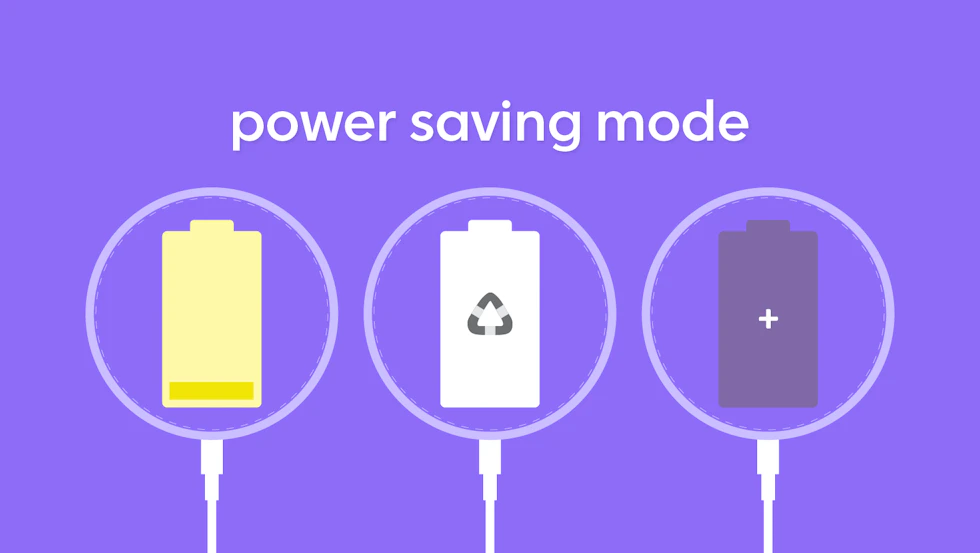
Battery Saver as it’s known for Android devices or Low Power Mode for iPhone, is a built-in phone setting that extends your battery life by reducing performance and turning off non-essential background features.
It typically kicks in at a certain battery percentage, usually at 20% although sometimes you can change this yourself. You can also activate it through a widget button usually found in the dropdown when you swipe down at the top of your screen.
When your battery gets really low, normally under 10%, some devices offer even further power saving, such as Google Pixel’s Extreme Power Saving. This still pauses non-essential apps but also slows your processor and stops background notifications to maximise remaining battery life.
3. Make your screen switch off sooner
Setting it so that your screen switches off sooner helps to reduce wasting battery for the times you set your phone down and forget to lock it.
It happens more than you think; you’re scrolling, you get up to do something, you place your phone down without thought and don’t realise you left it open, you come back and the battery has been depleted slightly.
You probably wouldn’t realise it immediately but come later in the day when you’re questioning why your phone is dying so quickly, you’ll remember.
Going into your settings and navigating to where you can choose the screen timeout timer will help you in more ways than you realise.
4. Use WiFi when you can
Your mobile data keeps you connected out and about, but a reliable WiFi connection is generally kinder to your battery. At home or work, connecting to WiFi can help your phone use less power when browsing, streaming or downloading.
Poor mobile coverage can also drain your battery as your phone searches for a better signal. Connecting to WiFi helps with data use, although it won’t stop that mobile signal search.
If you’re somewhere with no coverage, aeroplane mode can help. Just remember that it disables normal mobile calls and texts.
5. Find your battery-hungry apps

Some apps are hungrier than others. You can probably guess some of them – any app where you actively are using your device, such as Netflix, YouTube, Spotify etc. Mobile games are fun but are, of course, killer too. So if you’re running low already, maybe think twice about starting that next level of Gardenscapes.
Doomscrolling on social media is bad for both you and your phone. Try to limit yourself on the feeds.
The more surprising app drains are the unsuspecting ones. Navigation apps like Waze drain batteries through consistent GPS use and constantly updating live traffic, requiring it to be constantly on and checking for things.
Dating and shopping apps aren’t great either. The pull power through location services, frequent alerts and background data fetching.
Head to your phone’s settings and look for the battery usage breakdown to see which ones are helping themselves to the biggest slice. Look for anything using lots of power despite barely being opened. Unnecessary background activity could be the culprit, so try limiting background use for those apps, or uninstalling any you no longer need.
6. Give unnecessary apps the boot
Touching on that last point in the tip above, an easy way to patch the bleeding life is to get rid of any apps you don’t use often.
Unused apps don’t automatically drain your battery just by being installed, but some may still refresh content, check your location or send notifications. Removing those you no longer need can cut out that unnecessary activity and free up storage too.
Have a quick app clear-out, keeping anything useful and deleting the digital dust-gatherers. You can always reinstall them if you change your mind.
7. Review which apps need your location
Your maps app needs to know where you are to get you home. That game you downloaded out of boredom? Probably less pressing.
Check your location permissions in settings and, where appropriate, switch apps from constant access to “While Using the App”. Limiting unnecessary background location use can help reduce battery drain.
Keep access enabled for features you rely on, such as navigation or location sharing. The aim is to stop apps checking where you are when they don’t need to, without leaving you stranded halfway through a journey.
8. Download your entertainment before heading out
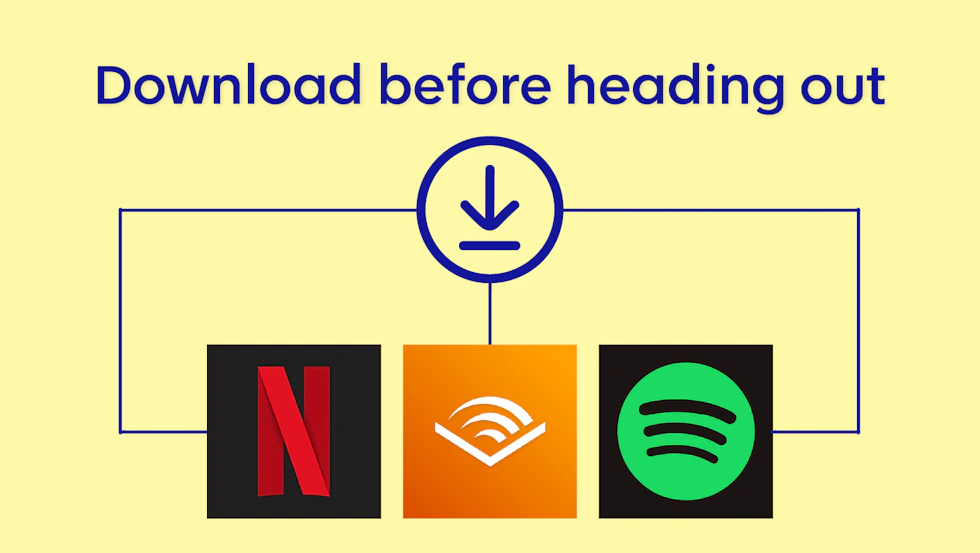
This one probably goes without saying as it’s helpful to saving both your battery and your data, but save any downloads for when you’re at home on the WiFi.
Streaming anything, whether it be video or music, means your device has to receive data to deliver your content. This gives its mobile connection extra work to do, thus making it have to work that bit harder which uses more power.
It’s worse especially so in areas with patchy coverage, where your phone is then constantly working even harder to reach whatever it can to give you what you want.
Downloading things before heading out the door means your device isn’t continually fetching the content over the mobile network.
Playback still uses power, especially with the screen on, but downloading ahead can save battery and mobile data. It also spares you the dreaded buffering wheel.
9. Keep your phone cool
Maybe a more rogue tip that you probably didn’t realise, but keeping your phone cool is a big help to ease the drain.
Your phone isn’t much of a sunbather. High temperatures can make its battery drain faster and speed up the chemical reactions that cause it to deteriorate. Over time, that can permanently reduce how much charge it holds.
Avoid leaving your phone in direct sunlight or a hot car, especially while charging. If it gets noticeably hot during gaming or charging, give it a break and move it somewhere cooler, out of the sun.
Let it cool naturally, though. Putting it in the fridge or freezer risks condensation damage, which is a rather expensive way to save a little battery.
10. Switch on smarter charging features
Your phone might already know how to give its battery a gentler charging routine. Features such as optimised or adaptive charging can learn your habits and delay the final top-up to 100% until shortly before you usually unplug.
This reduces the time the battery spends fully charged, helping slow its deterioration. Some phones also offer a charge limit, although choosing a lower maximum means less power available for the day.
Check your battery settings for the options available. These features help preserve battery health over time, rather than magically making today’s charge last longer.
Still running out of battery too quickly?
If your battery still struggles to see you through the day, try restarting your phone and checking for software and app updates. You can also check its battery health in settings, where available, for signs that its capacity has declined.
An ageing battery won’t regain its original stamina through settings tweaks alone. If the problem persists, contact your manufacturer or a reputable repair service. A battery replacement could give your phone a second wind without the cost of a whole new handset.
Genius Tip: If your battery’s ready to retire and the rest of your phone isn’t far behind, compare new phones and plans on SwitchGenius. Find a handset and deal that suit your needs and budget, with battery life high on your wishlist.